Common Product Settings

Several tabs of settings are common to all product types. This topic explains those settings.

General Tab

A few sections in the General tab are common to all product types.

Availability Settings

These settings are where you define the dates a product (such as a plan, fee, or bundle) is available.

Setting Description
Start

Required. Defines when a product (plan, bundle, eMoney, external product, entitlement product), becomes available and visible in the store or when a fee can start being assessed.

Click the calendar icon () to select a date and enter a time. Click Now to enter the current date and time.

End

Defines the date and time a product (plan, bundle, eMoney, external product, entitlement product), is removed from and no longer visible in the store or when a fee no longer begins being assessed, which is different from deleting a plan, fee, or bundle.

Click the calendar icon () to select a date and enter a time. Click Now to enter the current date and time.

Enter a date and time in this field only when you want the product suspended from availability. Once the change of an end date is approved and deployed, the product will no longer be visible to customers on that date and afterward and fees will not be newly assessed (but customers who have already been assessed the fee will continue to do so until they cancel the service associated with the fee).

This affects only a product's visibility in the store. Customers who have purchased a product that you make no longer available in the store still have that product, and if it is a recurring product, they will continue to have it in subsequent billing cycles.

To make it available again, remove the end date and time. Once that change is approved and deployed, the product will again be available to customers.

General Settings

Setting Description
Product SKU ID

This is a unique and immutable identifier that is assigned to a product when the product is initially created and saved. The Product SKU ID is used to reference a product when the ItsOn Service Design Center system interfaces with your carrier systems.

If your system defines scenarios where customers can receive products in conjunction with defined actions, then this identifier is what you use to reference the product through the system application programming interface (API). For example, you might have a scenario where a customer refers another customer, and when the referred customer joins, the referring customer receives a complimentary plan. Your system can interface directly with the ItsOn Service Design Center through APIs and reference the product that the customer should receive by using the Product SKU ID. Similarly, you might want a customer to receive a product as a part of account activation, and an activation API can reference the Product SKU ID to tell the ItsOn Service Design Center which product should be received under that scenario.

Default Category

Products need to be associated with a category so that the device client software and the web portal can organize and display customers' products. When customers purchase a product from the store, the category association is made automatically.

However, if this product is given as a benefit or purchased from a contextual offer, no such automatic category association is available. The selection of a category in this setting allows the product to be displayed correctly on customers' devices and on their account pages.

If you want a product that you give as a benefit or through a contextual offer to appear in the correct section in the device client software and on the web portal, then it is highly recommended that you select as the product's default category the same category that the product has been added to.

Defining a category in this setting also resolves any ambiguity if this product is a member of multiple categories. If the product is in more than one category, the category defined in this setting will define where the product appears on customers' devices when no specific category has been selected on the device.

Media Tab

The Media tab is where you associate any imagery, graphics, or other media with the product, other than a product icon. A product must have a media asset, specifically, a graphic file associated with it in this tab so when it is made a featured product, the graphic is what's displayed as a banner.

Image Settings

Setting Description
Media URL The pathname to the asset file.
Type

There are 3 ways that images are used when they are associated with a product.

  • Banner Image - A banner image is used when you want to feature a product.
  • Product Icon - A product icon is typically a smaller, simpler image, often easily recognizable to represent a popular app (Facebook, Spotify), product, or product type. It is used in many places, both before and after purchases, including:
    • Product list views
      • In the catalog
      • On the MyPlans page
      • On product history pages
    • Product detail views
      • In the catalog
      • From the MyPlans page
      • From product history pages
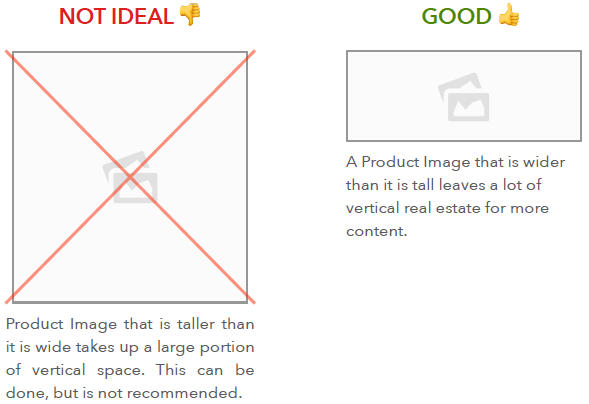
  • Product Image - A product image is a larger image displayed only at the top of product detail pages. In general, you want product images that are wider, rather than taller, so you can fit more descriptive content on a product details page, as the following example illustrates:
Images help to visually identify a product. You can use the same image for more than one product. For example, you could use the same image for all products of one type, such as all data plans.

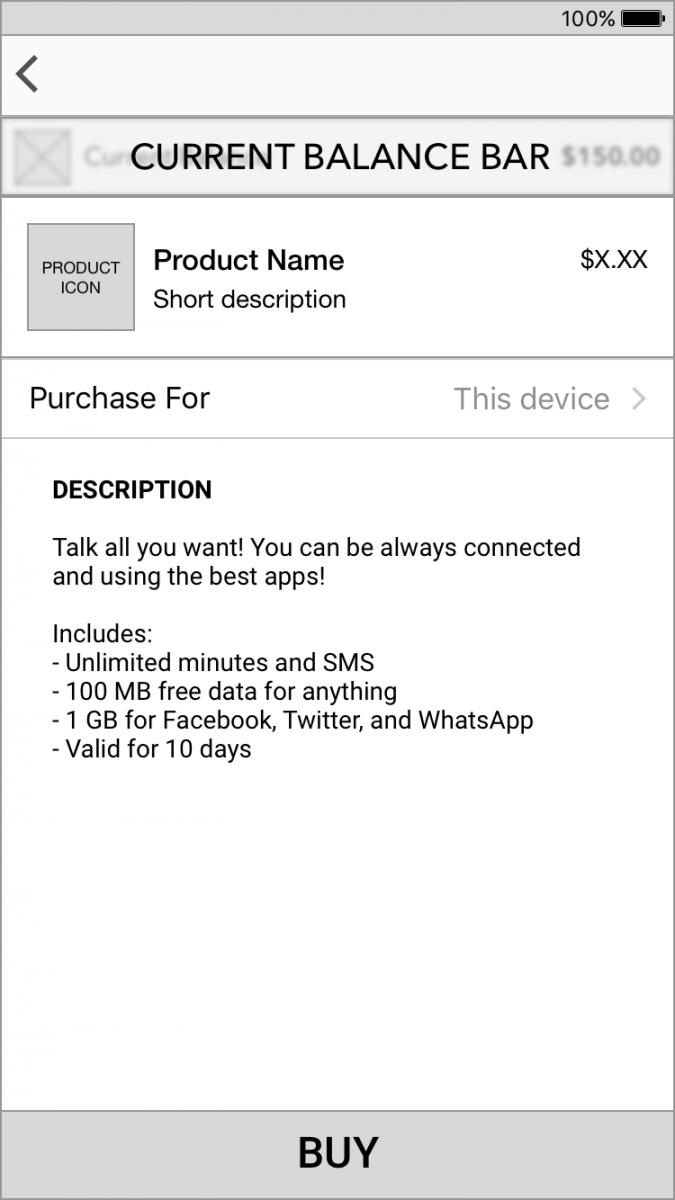
The following two illustrations show the difference between a product detail page with a product image and one without:
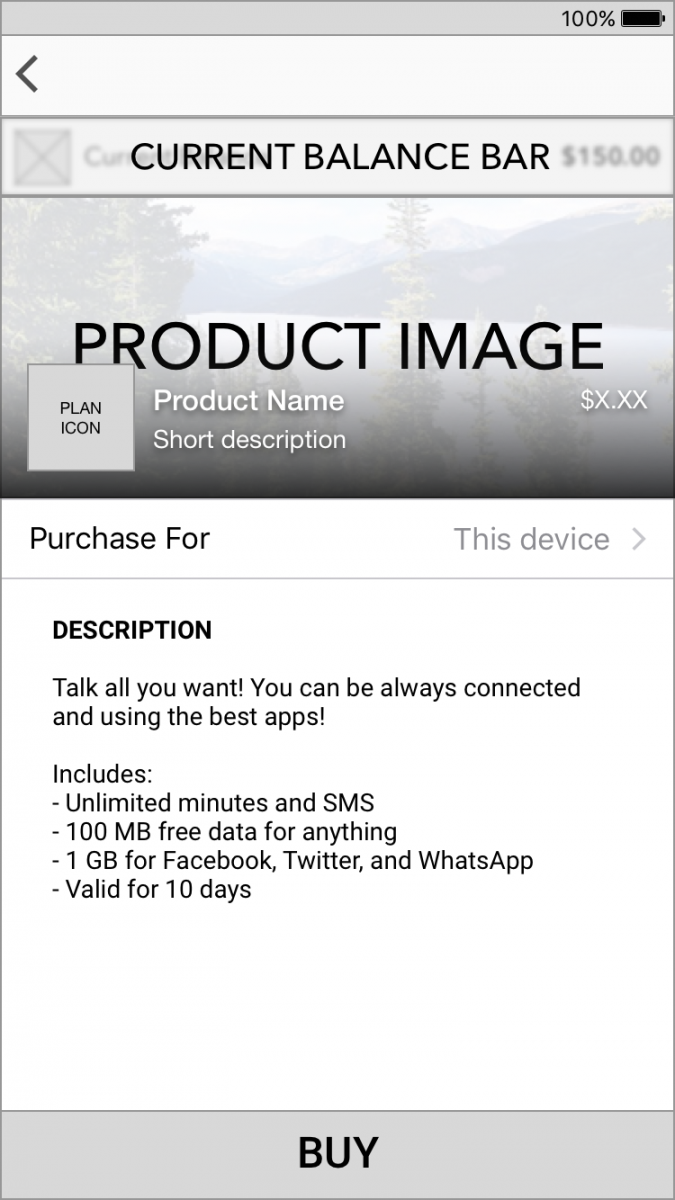
A product details page with both a product image and an icon. A product details page with just an icon.

Image files can be in most common formats, but your customers will get the best experience if you upload and use files in the Scalable Vector Graphics (SVG) format. If you use common bitmapped formats such as .GIF, .JPG, or .PNG, scaling to display in the correct size of customer devices could distort the image. {{tag.Product Name}} creates correctly sized .PNG files as needed from a single uploaded .SVG file, then caches the created files for fast future performance.

  1. Click Select/Upload Image.
  2. Select or upload an image file.
    • To select an image in the asset library, click its name.
    • To upload a new image file, click Upload new asset, select a file, and click Open.
Locale

The language and location (locale) identifier for the image.

Customers can set a language and location (locale) for their devices. The image that appears on customer devices depends on both the locale defined for the image and the locale defined on the device, as follows:

  • If you define an image with a locale that matches the device's locale, that image will be displayed.
  • If you do not define an image with a locale that matches the device's locale, then
    • if you defined an image for the default system locale, that image will be displayed, or
    • if you did not define an image for the default system image locale, no image will be shown (except for the Product Icon type, where a default grayscale self-care app icon will be shown when no image has been defined for the product icon default locale).

See Translated Content for more information about locales and the system default locale.

Best Practice: You should add images with locales other than your default system locale only after you define your default locale images.
Media Title The text you enter in the Media Title field becomes the content of the title tag in the store presentation.
Key

Required. A unique identifier within the product. If you add a media asset and give it the same Key value as an existing media asset associated with the product, the existing media asset will be replaced with the new one.

A well-named key can provide extra, useful information or meta-information about the image, such as "front" or "back."

Advanced Tab

Setting Description
Discountable

Determines if a discount can be applied to the product. Select:

  • Yes (default): A discount can be applied.
  • No: A discount cannot be applied.

More specifically, the offer engine determines if a product is eligible for a discount for a specific purchase. Then this setting determines if the discount can be applied to the product.

External ID