Retail Coupon Settings

This topic details all the settings for retail coupon products. This is the information you will need when you add or edit retail coupon products.

Service Design Center uses a change management process to track and approve all changes to any product. All of these changes, including additions, edits, and deletions, must go through the promote-approve-deploy process before they become available.

Any changes you make (change a name, change a price, add or delete a product from a bundle, etc.) to any product do not affect any users that already have the product.

General Tab

The General tab contains most of the settings you will configure to determine how a retail coupon product looks, acts, is priced, and more. 

Appearance Settings

These settings define how information about a retail coupon product will appear to customers.

Setting Description
Name Required. The name serves 2 primary purposes: it's what you see in product lists and it's what customers see as a descriptor when they are making purchase decisions. The name is limited to 115 characters.
Short Description Brief plain-text information about the retail coupon product that sometimes appears with the retail coupon product name. 
Marketing Message

Descriptive rich-text information about the retail coupon product that appears on only the pre-purchase detail page above the content you add in the Description field. You can format the content you enter in several different ways using the functions in the toolbar.

This field is best for a small amount of marketing information that will help drive purchase decisions, such as offers customers will receive with purchase. Use the Description field for larger amounts of additional product information.
Description

Detailed and descriptive rich-text information about the retail coupon product that appears on retail coupon product detail pages. The content you enter here is seen on the product detail page both pre- and post-purchase. You can format the content you enter in several different ways using the functions in the toolbar.

This field is best for providing additional details about the product, for adding details to the brief marketing message, for legal boilerplate content, and so on.

Coupon Codes Settings

These settings define the type, quantity, and longevity, of the coupon codes.

Setting Description
Type

Required. Determines whether this retail coupon product uses a single coupon code or a list of coupon codes. Select:

  • Unique (from file) - Requires an upload of a Code File, which contains a list of one or more unique coupon codes. Each code can be used only once. When a customer receives a coupon code  from a retail coupon product of this type, one code is selected from this list to be delivered to the customer, and that code is never used again.
  • Universal (entered manually): Requires an entry of a coupon code value in the Coupon Code field and a number value in the Quantity field. This code is used over and over up to the limit in the Quantity field. Every customer who receives a coupon code from a retail coupon product of this type will be delivered the same code.
Once the retail coupon product is saved, this value cannot be changed.
Code File

Required when you select Unique (from file) in Type. This is a comma-separated values (CSV) file that you upload from your computer and that contains a list of all the coupon codes. The number of coupon codes in the file determines how many coupons this retail coupon product will have to offer customers. For example, if the file contains 100 codes, once the 100th customer has received this retail coupon product, no more of these coupons will be available for purchase.

Customers may still be able to view the coupon product in the catalog, but they will not be able to purchase it.

The first line of the file must be the code format, which tells the system how the coupon code will be rendered on customers' devices when they receive the coupon code product. This line must be one of the following values, which correspond to the Standard Name in the Render Codes As setting:

  • EAN_13
  • PDF417
  • QR_CODE
  • TEXT

When you select a file to upload, it gets put into an internal staging area. When you save the retail coupon product, {{tag.Product Name}} processes the code file and validates the codes in the file. This validation checks two things:

  • That the codes adhere to the barcode standard requirements (when coupons are rendered as a barcode) or contain letters and numbers only (when coupons are rendered as plain text)
  • That all codes in the file are unique.

Before you initially save the retail coupon product, you can upload a different code file (for example, if you realize you selected the wrong one), and the new file will replace the one you uploaded originally.

Coupon Code

Required when you select Universal (entered manually) in Type. Enter the value for the code. The value must contain only letters and numbers. No spaces or other characters are allowed.

If you select EAN-13, PDF417, or QR Code in the Render Codes As field, {{tag.Product Name}} will validate the entry to make sure it conforms to a valid value for the code standard.

Quantity

Required when you select Universal (entered manually) in Type. Enter a number to determine how many coupons, also known as the coupon inventory, customers will be able to purchase.

You can modify the coupon inventory after you have saved and deployed the retail coupon product.

Codes Valid Until

Required. Defines the date and time that the coupon codes expire (can no longer be used at the merchant), also known as the validity date. This date and time is defined by the merchant offering the coupon, and so you should work with the merchant to determine the correct date and time to enter in this field.

This is different from the End date in the Availability section, which is the date and time the retail coupon product itself is available in the store.

Render Codes As

Required when you select Universal (entered manually) in Type. Defines how the coupon code will appear on a customers device. This can be as plain text or as one of several scan code standards. Select:

Standard Name Description Example
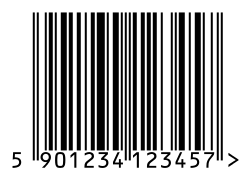
EAN-13

EAN-13 is a standard numbering system used in global trade that identifies a specific product type, in a specific packaging configuration, from one manufacturer. "EAN" stands for European Article Number, which is now more properly known as International Article Number, and 13 represents the number of digits used in the encoding. The EAN-13 standard also describes the barcode symbology, or how to render a barcode from the numeric code. The EAN-13 standard extends the 12-digit Universal Product Code (UPC) developed in the U.S. in 1970.

EAN-13 codes are ubiquitous on product packaging and are what is scanned at point-of-sale terminals. If the coupon is to allow a customer to obtain a physical product from a partner retailer, this is probably the correct choice for code rendering.

Valid Code Format

The valid format for the codes that will render as EAN-13 and that will be in the code file that you upload or the text you enter in the Coupon Code field is as follows.

An EAN-13 code is 13 digits long and consists of 4 components, in the following order:

  • GS1 prefix: 3 digits
  • Manufacturer code: variable length
  • Product code: variable length
  • Check digit: 1 digit

The check digit is used to verify that a barcode has been scanned correctly. It is computed modulo 10, where the weights in the checksum calculation alternate 3 and 1. This means that a valid EAN-13 code cannot be any 13 numbers, but must follow a specifically defined pattern. This is how {{tag.Product Name}} validates EAN-13 codes for correctness.

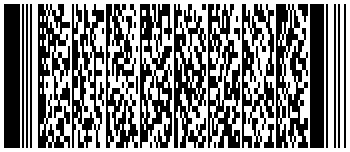
PDF417

PDF417 is a barcode format used primarily in transport, inventory management, and identification cards. "PDF" stands for Portable Data File. The 417 specifies that each pattern in the barcode contains 4 bars and spaces and that each pattern is 17 units long.

Valid Code Format

Because PDF417 is a two-dimensional barcode, the valid format for the codes that will render as PDF417 and that will be in the code file that you upload or the text you enter in the Coupon Code field can be complex.

The code contains a series of ASCII characters. The size of the code depends on how much data encoded in the barcode and how much error correction is used, and its size is often measured in both bytes and characters.

For general binary data with no error correction enabled, a single PDF417 symbol can hold up to 1108 bytes. If the data consists of all numeric digits, then a single PDF417 symbol can hold up to 2725 digits. If the data consists of alphanumeric data, you can encode a maximum of 1850 bytes. If you have a mix of alphanumeric and binary data, the capacity will be somewhere between 1108 and 1850 bytes and will depend on the content of the data. However, it is generally recommended to limit the amount of data to 800 characters or fewer.

QR Code

QR Code is a two-dimensional barcode format designed originally for the automotive industry in Japan and now used for many purposes, including product tracking, item identification, time tracking, document management, and general marketing. It became popular outside the automotive industry because it can be read faster and store more data than EAN-13 codes.

Valid Code Format

As a two-dimensional barcode format, the amount of data that can be encoded in a QR Code is large. The valid format for the codes that will render as QR Code and that will be in the code file that you upload or the text you enter in the Coupon Code field is as follows.

The code contains a series of characters. The number and type of characters depends on the datatype, also known as the mode or character set. This can be summarized as follows:

Datatype Max. Characters bits/character Valid characters/encoding
Numeric 7089 3 1/3 Numerals
Alphanumeric 4296 5 1/2 Numerals, letters (UPPER CASE only), space, $, %, *, +, -, ., /, :
Binary/byte 2953 8 ISO 8859-1
Kanji/kana 1817 13 Shift JIS X 0208
The alphanumeric datatype is the only one used in Service Design Center.
Plain Text

The code will be displayed exactly as uploaded (if Unique is selected in Type) or entered (if Universal is selected in Type), in plain text.

Valid Code Format

The valid format for the codes in the code file that you upload or the text you enter in the Coupon Code field is a string that can contain only letters or numbers.

abcdeFGHI1234


Behavior Settings

These settings determine how long customers can view the coupon code product on their devices and how that information is presented.

Setting Description
Cycle Duration

Required. This defines how long a coupon code product cycle is. The product cycle as defined for a retail coupon product is the amount of time that customers will see the retail coupon product on their current subscriptions list. Once the cycle duration time ends, the retail coupon product is moved to the subscription history list. Customers can still use the coupon from there up until the date and time defined in the Codes Valid Until setting.

Best Practice: Align the Cycle Duration setting with the Codes Valid Until setting so the coupon will remain in the customer's current subscription list for the entire time it is valid.

Select from:

  • Unlimited. This means that the coupon code will stay on the customer's current subscriptions list.

  • Lasts, then enter a number and select a unit of measure from minute(s), hour(s), week(s), day(s), or month(s). This sets a time limit for the coupon code to remain on the customer's current subscriptions list. When the cycle duration ends, the coupon code is moved into the customer's subscription history list. However, if the coupon's expiration date (the time and date in the Codes Valid Until setting) has not yet occurred, customers can still view the coupon in the subscription history list and use it from there.

    You can enter only positive integers (1, 37, 5287024, etc.) in this field. Zero, negative numbers, and decimal numbers (0, 0.5, 3.1415926, 2.5, etc.) are not allowed.
Usage Display

When customers buy retail coupon products, they can view how long the coupon will remain on the My Plans page of the self-care app.

The usage display shows the time usage. Select:

  • Duration: To show a bar and label for time used and available.
  • None: To show no duration information. Customers will have no information about how long the coupon will remain on the My Pans page.

Bar and Label Direction and Position

The direction of bar movement and the position of labels in relation to the bar (to the right or left of the bar) depend on tenant settings and/or language (left-to-right or right-to-left) settings.

First, whether the bars are count up (for example, Day 7 of 15) or count down (for example, 8 days remaining) depends on a tenant setting.

Then, the direction that the bar moves (or fills) depends on a tenant setting.

Finally, if there is a label, its location depends on language settings. If the language setting is left-to-right, the label will be to the right of the bar. If the language setting is right-to-left, the label will be to the left of the bar.

Visibility

Determines whether or not the retail coupon product is visible to customers.

If this is set to Hide, the retail coupon product is not visible for purchase in the store nor is it visible in a customer's account information. It is not shown as part of a bundle when included in a bundle.

A retail coupon product cannot be hidden unless its price is equal to 0 (zero). This is because at checkout, a non-zero priced retail coupon product in the cart will result in a total price that is different from the sum of the prices of the visible products, which could cause customer confusion. So this setting is unavailable until a price value greater than 0 (zero) has been entered for the retail coupon product.

Billing Settings

Setting Description
Retail Price Defines the default, standard price for the product (plan, fee, bundle, etc.). This is the price customers will see unless overridden by the Sale Price field or other available offer mechanisms. If no value is entered, 0 is used.
Sale Price

Overrides the Retail Price while allowing you to keep a record of the retail price. To return to the Retail Price, delete the contents of this field.

A Sale Price can affect whether customers qualify for offers (benefits and discounts), depending on the value of the Apply to sale price setting in the offer.

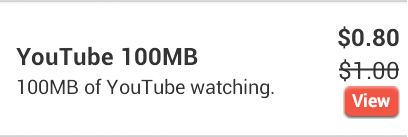
When a customer is viewing the catalog, both the sale price and the retail price are visible in the product listing. The exact appearance will depend on your branding. The following graphic is an example of what customers might see in a product where the Retail Price is 1.00 and the Sale Price is 0.80:

Some research suggests that consumers believe prices with more syllables are higher than the same prices with fewer syllables, and this is seen in both spoken and printed prices. Both commas and decimal points add to the "syllables," so, for example, $1,199.00 is viewed as more than $1199. ItsOn provides a client-side branding setting that can present catalog prices without the decimal and the digits after the decimal for whole number prices. If this setting were used for the example above, the values seen in the catalog presentation would be $1 and $0.80. This setting does not affect the amounts you enter in the Retail Price Price or the Sale Price fields, nor the amounts shown during checkout, in customer invoices, and in customer service records.
Tax Classification

This defines what specific taxes should be charged, if at all. Different municipalities and other political units charge varying amounts of and types of taxes and fees on specific types of goods and services. This selection drives the correct type and amount of taxes to be collected based on the customer's location and type of service purchased. Select from:

  • Data Plan
  • Voice Plan
  • Text Plan
  • Line-Based Fees
  • Equipment
  • Not Taxable


See Also