eMoney Settings
This topic details all the settings for eMoney products. This is the information you will need when you add or edit eMoney products.
Service Design Center uses a change management process to track and approve all changes to any product. All of these changes, including additions, edits, and deletions, must go through the promote-approve-deploy process before they become available.
Any changes you make (change a name, change a price, add or delete a product from a bundle, etc.) to any product do not affect any users that already have the product.
General Tab
The General tab contains most of the settings you will configure to determine how an eMoney product looks, acts, is priced, and more.
Appearance Settings
These settings define how information about a product (plan, fee, or bundle) will appear to customers.
| Setting |
Description |
| Name |
Required. The name serves 2 primary purposes: it's what you see in product lists and it's what customers see as a descriptor when they are making purchase decisions. The name is limited to 115 characters. |
| Short Description |
Brief plain-text information about the eMoney product that sometimes appears with the eMoney product name. |
| Description |
Detailed and descriptive rich-text information about the eMoney product that appears on eMoney product detail pages. You can format the content you enter in several different ways using the functions in the toolbar. |
| Fulfillment Type |
This is a system-required field that is not used for eMoney products. Leave it at its default option.
Currently, ItsOn Digital Delivery is the only option that is supported. Selecting any other option may produce unpredictable results.
|
Recipient/Sharing/Assigning Settings
| Setting |
Description |
| This product can be purchased for |
Required. Determines who can receive the eMoney when it is purchased by a customer. Select
- Customer's account only - If you want the eMoney to stay with the purchaser's account.
- Gift recipient only - If you want the eMoney to be only giftable, that is, it can only be given to someone outside the purchaser's account.
- Customer's account or gift recipient - If you want the purchaser to have the option of purchasing either for that account or as a gift for someone outside the purchaser's account.
eMoney can be gifted only at purchase time. The purchase process of a gift requires a phone number to be input by the purchaser to identify the gift recipient. There are several issues that could occur and that would prevent the completion of a gift purchase, issues that include:
- Entry of an incomplete (not enough digits) or incompatible (too many digits, non-numeric digits) phone number.
- The phone number entered is for a subscriber in the same account. (Gifts can be made only to subscribers outside the purchaser's account.)
- The phone number entered is for a suspended subscriber.
- The phone number entered is for a subscriber in a suspended account.
|
| eMoney Allocation |
Required. Determines how the eMoney purchase can be allocated. Select:
- Purchaser's subscriber wallet only
- Any subscriber wallet
- Account wallet or any subscriber wallet
- Account wallet only
When a product is gifted, the recipient is a subscriber, identified by a phone number. However, when an eMoney product is gifted, the amount of the eMoney product goes into the account wallet of the subscriber's account, no matter what this setting's value is. The amount can then be transferred into a subscriber wallet.
What customers can do with eMoney at purchase time depends not only on these settings, but on whether you as a tenant support single-subscriber accounts or multi-subscriber accounts. See eMoney Allocation Customer Experience for more information.
|
There are a number of ways that customers receive eMoney where sharing, assigning, and gifting settings will not be available to them. In those cases, default eMoney sharablility and assignability occurs.
Some sharing and assigning is done by the eMoney purchaser as part of the purchase process. In fact, some settings require sharing, assigning, or gifting selection at purchase time. But when an eMoney product is mandatory to be received, is received via the complimentary or provisioning API, or is received as a benefit, it is not included as a part of such a purchase flow, so sharing and assigning selections that are required within that flow cannot be made.
A specific example of this is if an eMoney product's This product can be purchased for setting is Gift recipient only. If this eMoney was being purchased, the only option at purchase time would be to enter a phone number of a subscriber outside the account to receive the eMoney. But if the eMoney is received as a complimentary product, the screen to enter a phone number isn't shown, so there's no way to gift the eMoney.
The general rule is that if an eMoney product is received outside of the customer-facing purchase flow, like when eMoney is received automatically, and has a combination of settings that require decisions only in that customer-facing purchase flow, then the eMoney is assigned to the subscriber designated to receive the plan if you offer subscriber wallets(*), and if that subscriber is not known or if you do not offer subscriber wallets(*), the eMoney is assigned to the account.
Billing Settings
| Setting |
Description |
| Retail Price |
Defines both the default, standard price for the eMoney product and the amount of the eMoney product. This is the price customers will see unless overridden by the Sale Price field or other available offer mechanisms. If no value is entered, 0 is used. |
| Sale Price |
Overrides the Retail Price while allowing you to keep a record of the retail price. To return to the Retail Price, delete the contents of this field.
Enter a value here if you want to charge less for the eMoney product than the amount of the eMoney product.
A Sale Price can affect whether customers qualify for offers (benefits and discounts), depending on the value of the Apply to sale price setting in the offer. When a customer is viewing the catalog, both the sale price and the retail price are visible in the product listing. The exact appearance will depend on your branding. The following graphic is an example of what customers might see in a product where the Retail Price is 1.00 and the Sale Price is 0.80:
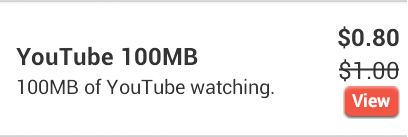
Some research suggests that consumers believe prices with more syllables are higher than the same prices with fewer syllables, and this is seen in both spoken and printed prices. Both commas and decimal points add to the "syllables," so, for example, $1,199.00 is viewed as more than $1199. ItsOn provides a client-side branding setting that can present catalog prices without the decimal and the digits after the decimal for whole number prices. If this setting were used for the example above, the values seen in the catalog presentation would be $1 and $0.80. This setting does not affect the amounts you enter in the Retail Price Price or the Sale Price fields, nor the amounts shown during checkout, in customer invoices, and in customer service records.
|
| Tax Classification |
This defines what specific taxes should be charged, if at all. Different municipalities and other political units charge varying amounts of and types of taxes and fees on specific types of goods and services. This selection drives the correct type and amount of taxes to be collected based on the customer's location and type of service purchased. Select from:
- Data Plan
- Voice Plan
- Text Plan
- Line-Based Fees
- Equipment
- Not Taxable
|
See Also